
Contents
What is Matrix?
Feel free to skip to Setup if you don't care for the preamble
Matrix is a messaging platform similar to Discord, but instances are run on instance owner's homeserers instead of a single company's server.
With Discord, every message passes through Discord’s servers:
Matrix works differently. Messages pass through independently run servers instead:
Is this better? Up to you. I won't pretend non-self hosted platforms are generally more polished. however, because Matrix is just software I’ve got running on my server PC under my desk and is not ran by a company, I can guarantee that nobody is going to sell your data to advertisers, ask for your ID, or use an AI model for age estimation. Personally, I just think the idea of hosting my own chat platform is neat and I see a lot of promise in the idea of using federated platforms for communicating. I go into more detail on this below.
Federation?
Another way to explain Matrix is that it is like email for instant messaging. When you register for a matrix account on the chat.bertbird.xyz homeserver, you will get the id username:bertbird.xyz. This username:bertbird.xyz is how people will be able to contact you on Matrix like an Email address with a “:” instead of an “@”.
The cool part is that like an email address, if you are username:bertbird.xyz and you have your friend Garry Goose who it not on bertbird.xyz and is instead garry:garrygoose.com, you can send messages to Garry no problem and even add them to Spaces (Discord calls these Servers, Matrix calls them Spaces) hosted on bertbird.xyz. This is what Federation is.
Because Matrix is Federated, if you decide that you don't want your account on my server or if you’d just rather not have some random guy’s fursona name be part of how people contact you online (fair enough), there is nothing stopping you from starting up your own Homeserver and joining my Matrix space with your own account. There is even a list of public Homeservers you can pick from as an alternative to bertbird.xyz: https://servers.joinmatrix.org/. However, for the sake of these instructions, I will assume that you are using my bertbird.xyz homeserver.
The benefits of Federation are that:
- No single company controls the entire platform
- Each server sets its own rules and requirements without needing to abide by the platform rules
- Users have full ownership and control of their data
- Server owners set their own hardware limitations. IE: allow file uploads greater than 10 mB.
Setup
This setup process walks you through:
- Creating an account on the bertbird.xyz (https://chat.bertbird.xyz) Homeserver
- Getting yourself a recovery key (required for encrypted chats)
- Joining the public server waiting room and getting added to the main server
Step 1
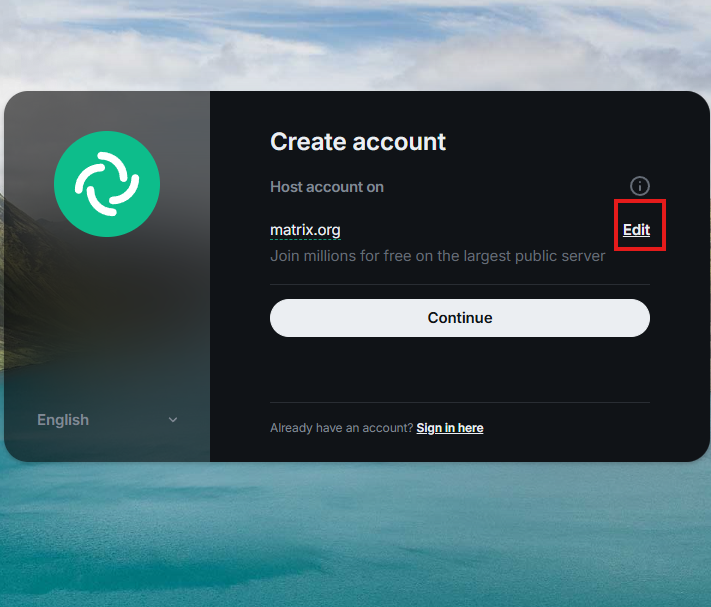
Go to https://app.element.io/#/welcome and click "Create Account"
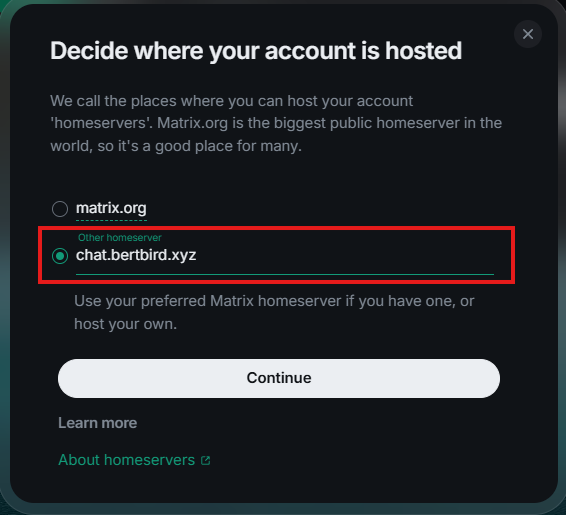
First, Edit the homeserver - changing it to "chat.bertbird.xyz", and hit continue.
|
|
||
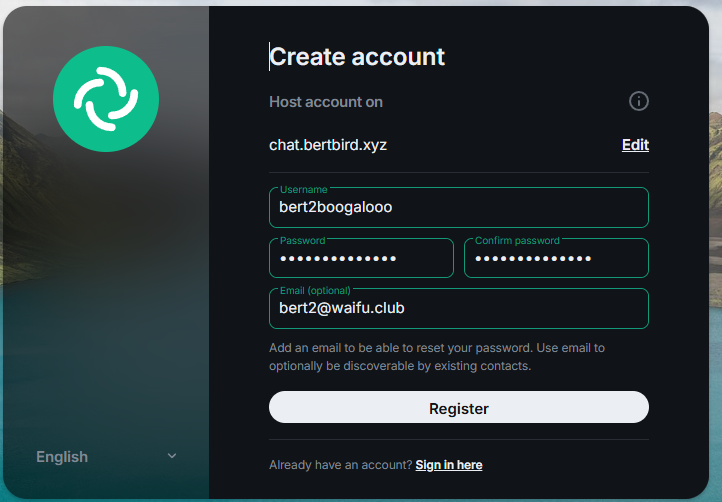
Step 2Make an account as you would anywhere. Note that you will be able to change your display name at a later point but not your username. Your username will be how people find you on this platform. Email is optional and the only reason it is asked for is so you can reset your password if you forget it If you choose to provide your email, make sure to check your junk folder for birdbot@waifu.club. |
|
||
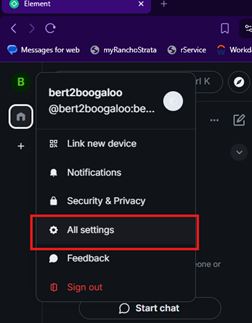
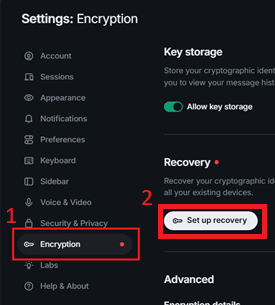
Step 3When into Element, click your icon at the top left and choose “All settings” then “Encryption” Click “Set up recovery”, generate a key, and copy and paste that key to somewhere you’ll be able to find later (you will need it). If you use a password manager, I recommend throwing this in there as a note in this account you just made. |
|
Step 4
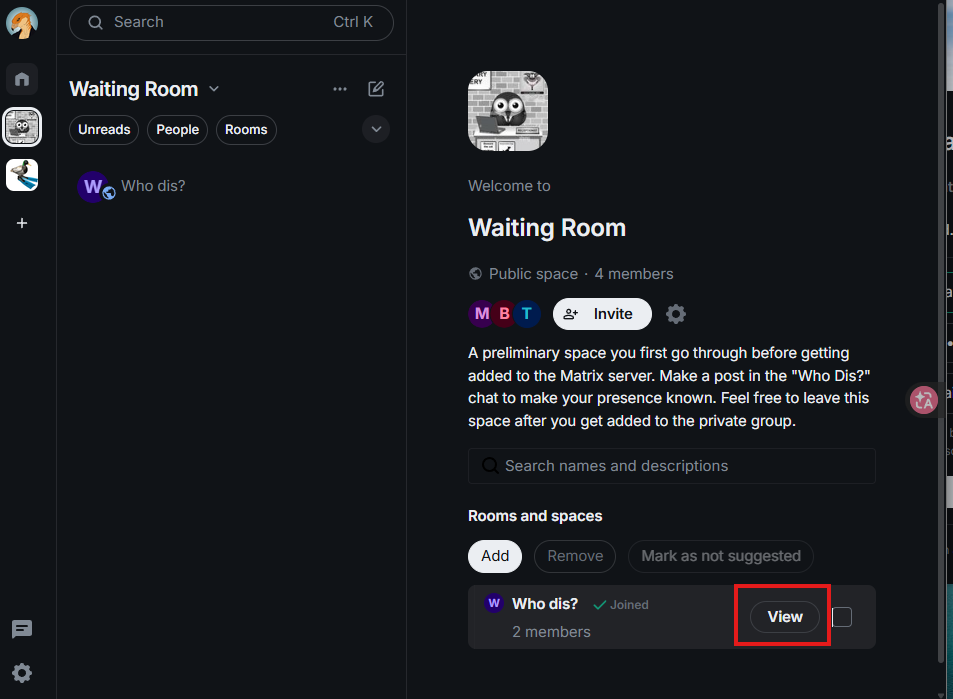
Now you're finally ready to join! You'll first join the server waiting room using this link: https://matrix.to/#/#waiting-room:bertbird.xyz
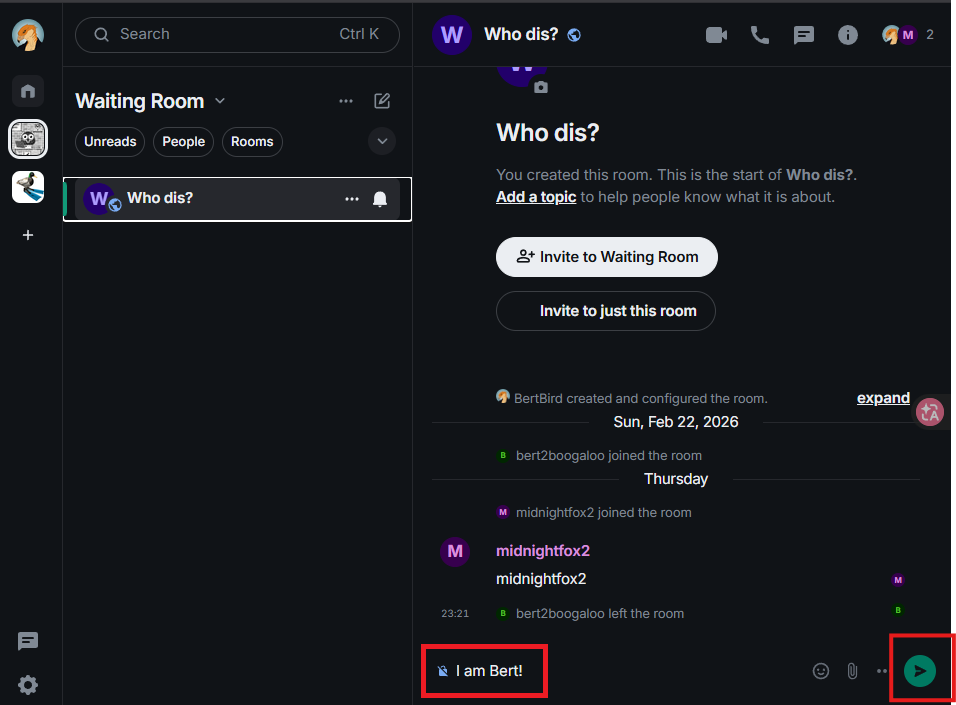
Join “Who dis?” and send a message to both let me know who you are and notify me you need to be added to the main server.
|
|
Step 5All done with account and server access setup! While you're waiting on me to add you to the server, I reccomend you get a Matrix client setup as described in the next section. |

|
Client Setup
Matrix is actually just the backend. To actually message people, you will need a client. There is a list of Matrix clients here and I recommend the following:
| Device | Client |
|---|---|
| 🪟 Windows | Commet |
| 🐧 Linux | Commet |
| 🤖 Android | Commet |
| 🍎 iOS / macOS | ElementX / Element |
Essentially, just use commet.chat unless you're on IOS or MacOS. If you're an Apple user, go for Element/Element X while we're waiting for commet.chat to come to that platform (should come soon).
Setting up Commet
For this, I am going to assume you've already installed commet.chat. I'll be showing the sign in process on a Windows computer but the process is the same on Android as well.
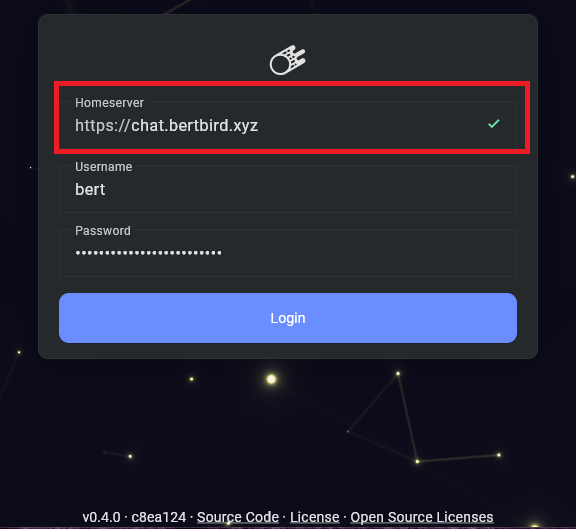
Step 1After installing Commet, it will launch to the UI shown on the right. The main note here is to make sure you change the homeserver to https://chat.bertbird.xyz. |
|
Step 2
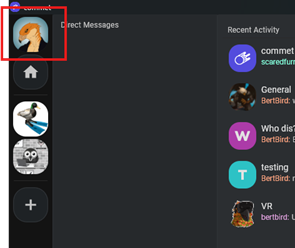
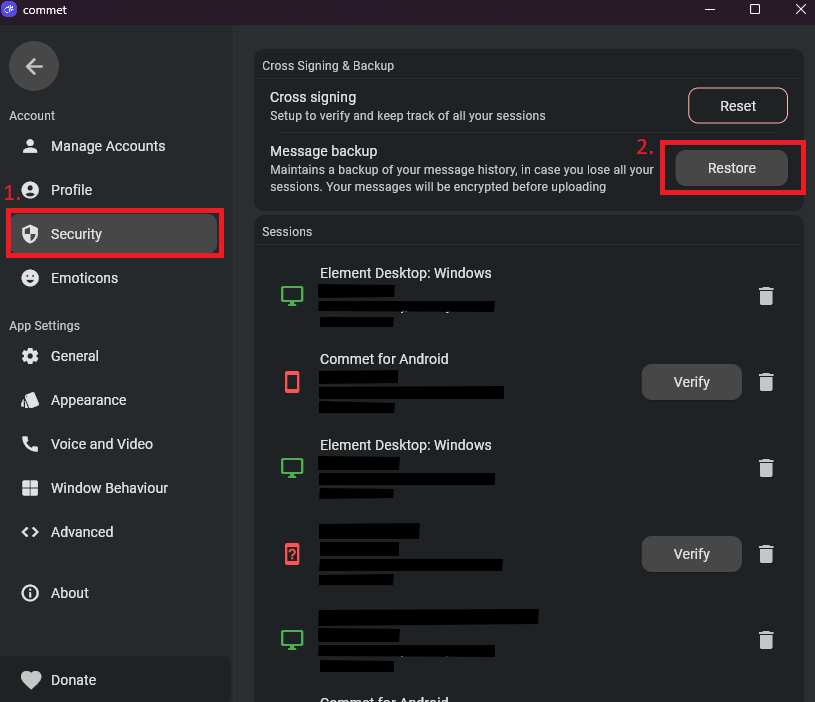
After signing into Commet, click/tap on your profile at the top left, go to security settings, click/tap "Restore", and paste in the recovery key you saved previously.
|
|
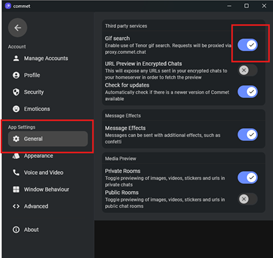
Step 3While you're in settings, go to general, then enable "Gif search". Probably the most important setting. |
|
Setting up Element X
Setup instructions in this section were made based on the Element X app.
Step 1
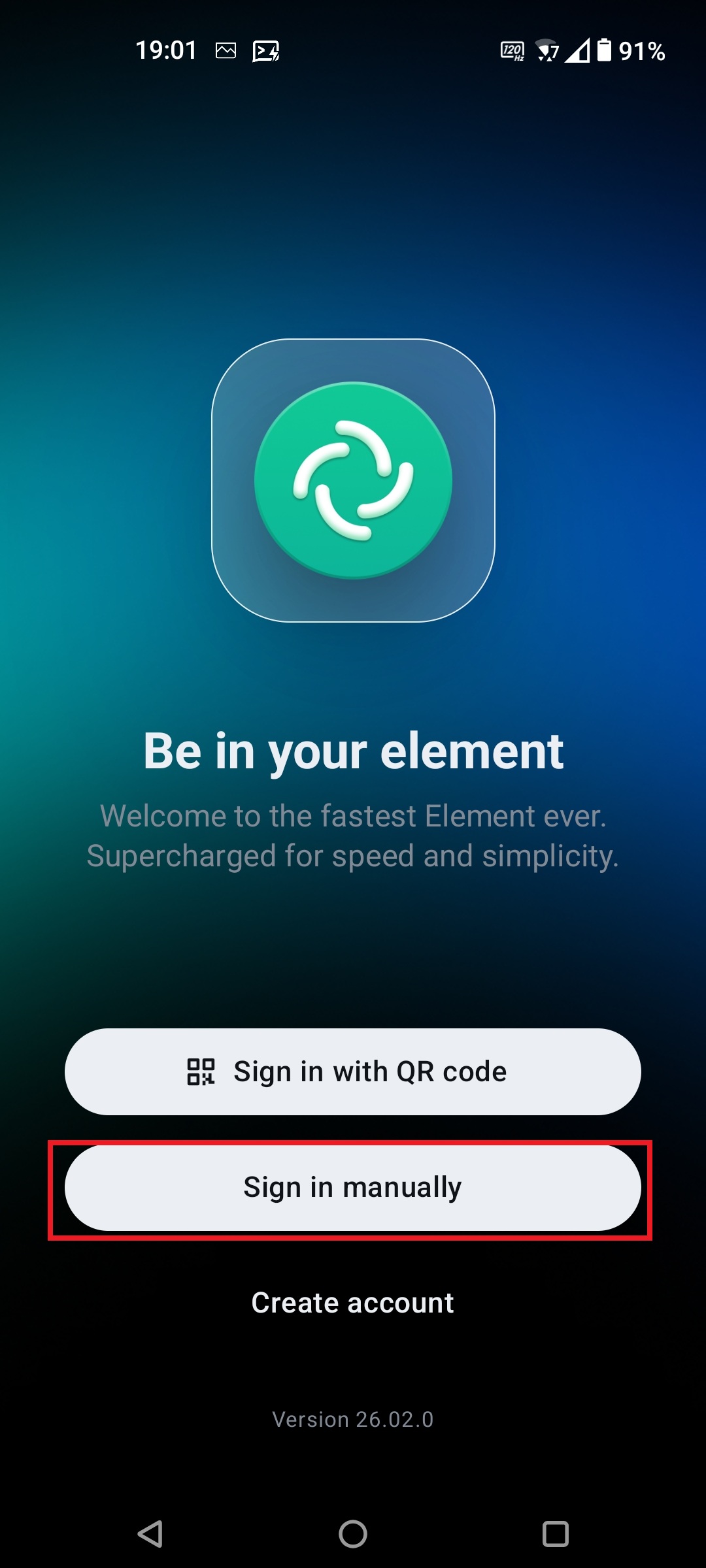
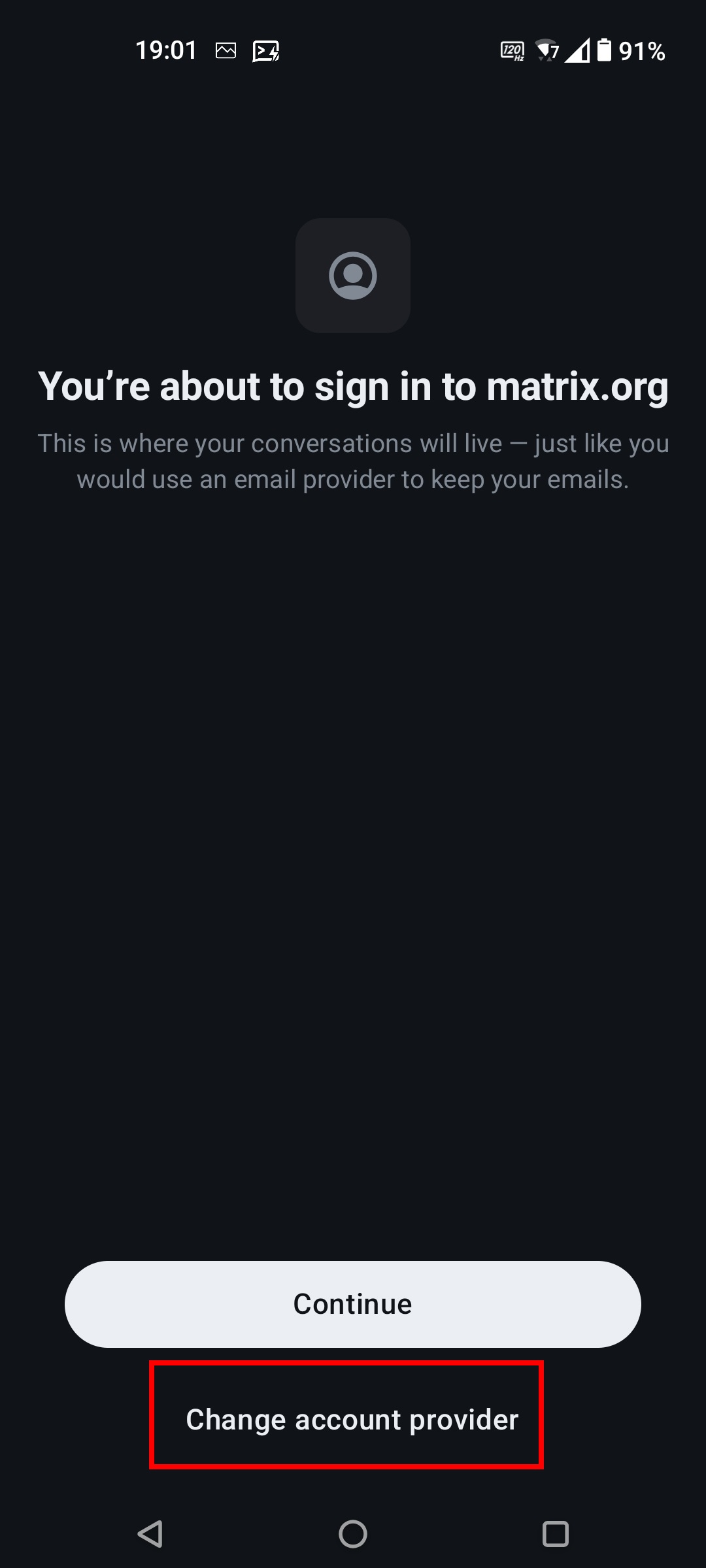
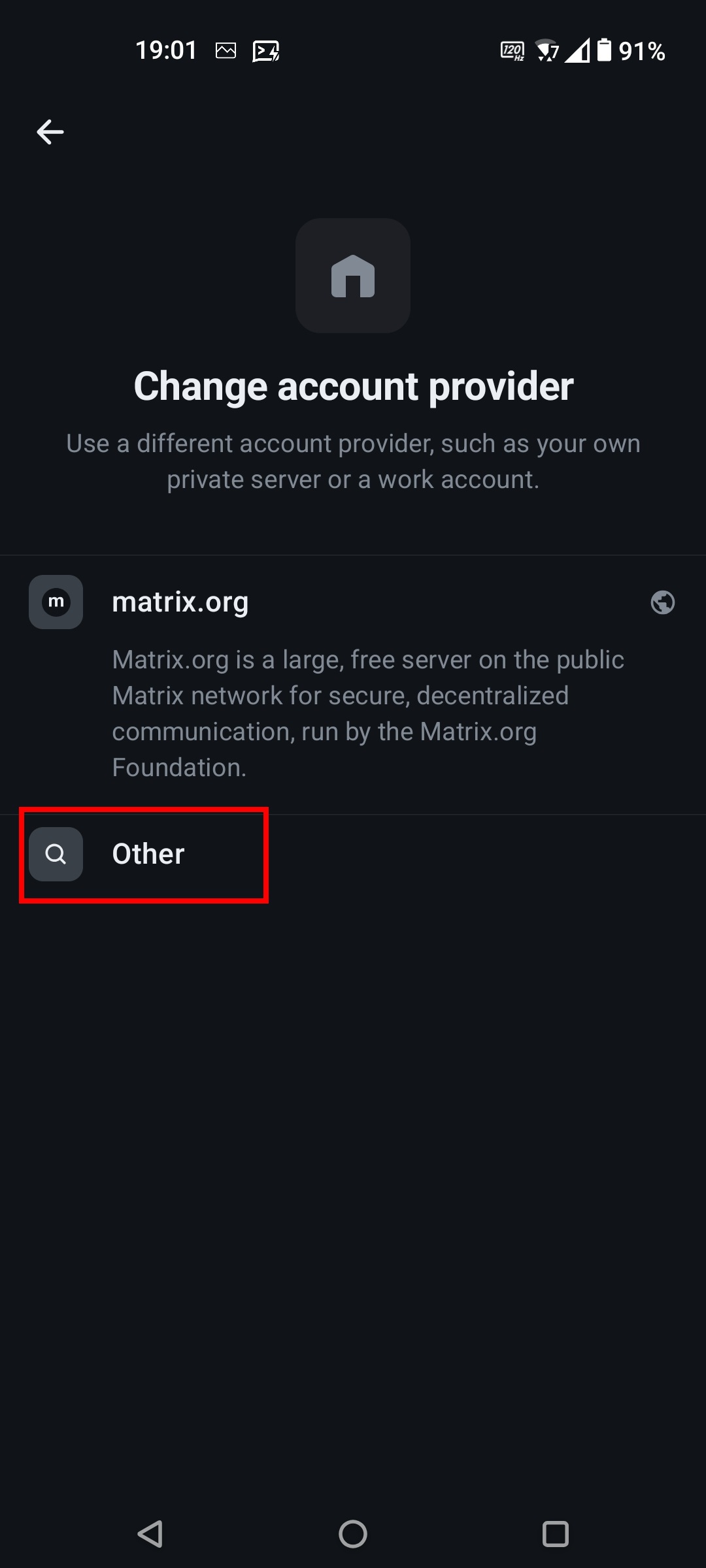
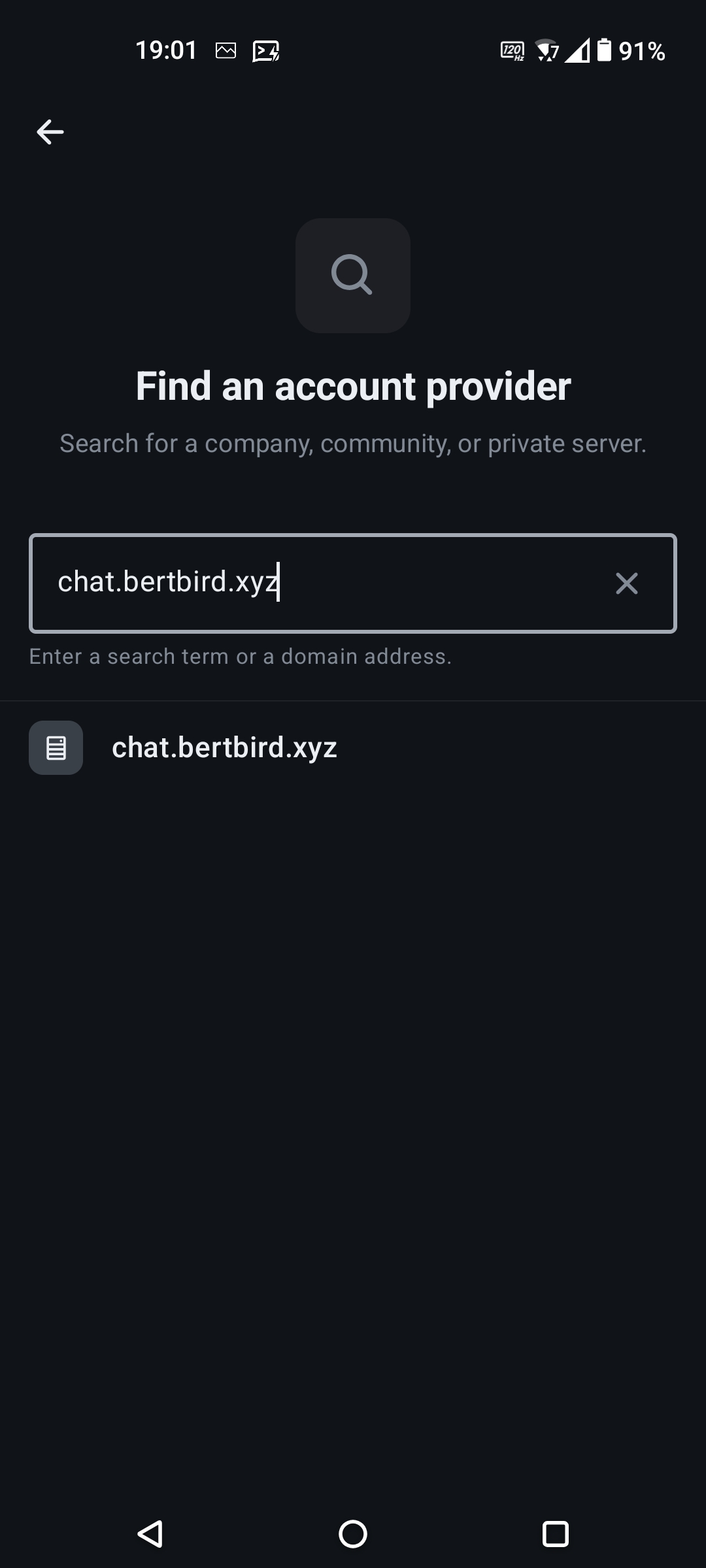
Open the Element X app and do the following:
- Sign in maunually
- Change account provider
- Other
- Enter "chat.bertbird.xyz" and proceed
|
|
|
|
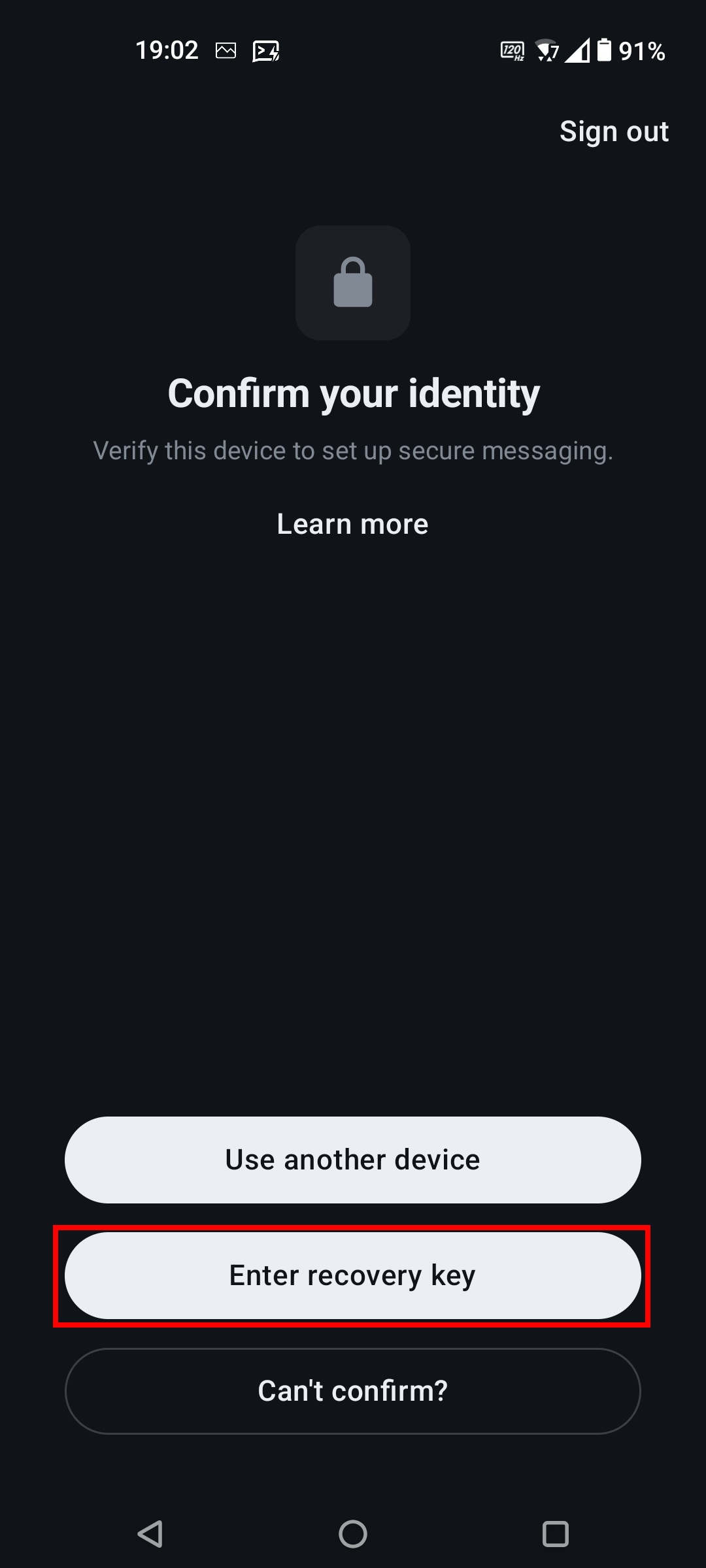
Step 2When prompted, hit "Enter recovery key" and paste in the recovery key you saved previously |
|